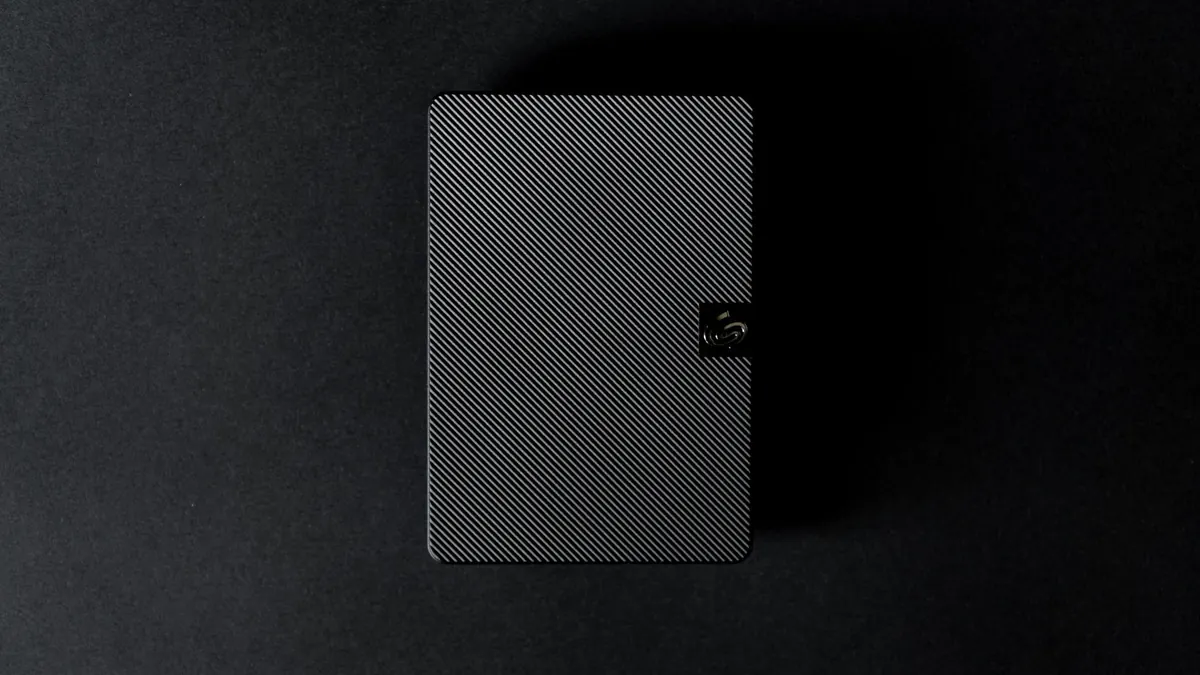
The drive holding your tax returns, scanned passports, ten years of photos and the only copy of a half-finished novel is about the size of a deck of cards. It lives in a laptop bag, a glovebox, a desk drawer. And unless you did something about it, anyone who picks it up can read every file on it with a cheap cable and any computer.
Encryption is what closes that gap. The good news is that you probably already own the tools: every major operating system ships with free, solid drive encryption, and portable drives increasingly bring their own. What follows is a comparison written for people who want the practical differences, not a lecture on cipher modes.
What Encryption Does, and What It Doesn't
Encryption scrambles the contents of a drive so that without the correct password or key, the data reads as random noise. Someone who finds your lost drive cannot browse your folders, and a repair shop cannot peek at your documents. That is the whole promise, and it is a good one.
It does not protect you from everything. If you unlock the drive on an infected computer, malware can read the files while they are open. If you hand your passphrase to a phishing site, encryption will not save you. If the drive simply fails, you lose the data regardless of how well it was scrambled. Encryption protects against loss and theft of the physical device, not against bad decisions made while it is unlocked.
The Free Options Built Into Your Operating System
All three desktop systems include encryption that is good enough for most people. The catch is compatibility: each one speaks its own format.
Windows: BitLocker To Go
Plug in the drive, open File Explorer, right-click it and choose Turn on BitLocker. You will be asked to set a password and to save a recovery key, which is a long string of digits you can use if you forget the password. Save it somewhere that is not the drive itself, and print a copy if the files matter.
One limitation to know before you start: creating BitLocker drives requires Windows Pro, Enterprise or Education. Windows Home can unlock and read encrypted drives, but it will not encrypt them for you. Encryption also takes time on large drives, so start it when you do not need the disk and let it finish. Interrupting the process is one of the few ways to genuinely damage the setup.
macOS: Encrypted APFS
Open Disk Utility, select the drive, and erase it with the format set to APFS (Encrypted). If the drive already holds data, you can instead right-click it in Finder and choose Encrypt, which converts it in place. Erasing is cleaner and faster; converting is safer if you have no other copy.
macOS can also encrypt a Time Machine backup drive directly, which is worth doing. What it cannot do is read a BitLocker drive without third-party software. Assume Mac and Windows encrypted drives are strangers to each other.
Linux: LUKS
LUKS is the standard here, and GNOME Disks gives you a friendly graphical way to create it. It is well regarded and widely audited, and if your working life happens on Linux it is the obvious choice. As a drive you carry between different computers, it is less convenient, since Windows and macOS need extra tools to open it.
Hardware Encryption: Convenient, With Caveats
Drives sold as hardware-encrypted do the scrambling in their own electronics rather than in software on your computer. The most useful versions have a small keypad on the enclosure: you type a PIN, the drive unlocks, and it then works on any machine with a USB port, no drivers, no operating system drama. For moving files between a work Windows laptop, a personal Mac and a Linux box, that is genuinely hard to beat.
Two caveats are worth your attention. First, some drives advertised as hardware-encrypted turned out to check the password in software and store the real key on the device, which weakens the whole point. Claims of FIPS validation are a useful signal, but read them as a starting point, not a guarantee. Second, because the encryption lives in the enclosure, a failed controller can make the data very hard to recover even if you know the password. If you buy one, buy two and keep them in sync.
Comparing the Main Choices
- BitLocker To Go: best if you live in Windows and want zero extra software. Needs a Pro-level edition to create. No native support on Mac.
- Encrypted APFS: built into macOS, painless on a Mac, invisible elsewhere.
- LUKS: excellent on Linux, awkward as a cross-platform shuttle drive.
- Hardware-encrypted drive with keypad: works everywhere, costs more, harder to recover from a hardware failure, quality varies by brand.
- VeraCrypt container: free, open source, runs on all three systems, but you must install it on every machine you use.
When the Drive Must Work Everywhere
Format the drive as exFAT so every system can see it, then create a single large VeraCrypt container inside it. The container behaves like a locked suitcase: mount it with the password, and a virtual drive appears. This is the most portable free approach, and it works on Windows, macOS and Linux.
The trade-off is that a container is one enormous file. If part of it gets corrupted, you may lose more than you would with a normal folder structure. Keep backups, and unmount it properly rather than yanking the cable.
A Setup You Can Do This Weekend
- Copy everything on the drive somewhere else first. Most encryption tools wipe the disk.
- Choose a passphrase of five or six unrelated words. Length beats symbols.
- Encrypt the drive and leave it alone until the progress bar finishes.
- Save the recovery key separately from the drive and from the passphrase.
- Eject it, plug it into a second computer, try a wrong password, then the right one.
- Label the drive physically with what it contains, never with the password.
- Keep a second copy of anything irreplaceable, ideally in a different building.
Habits That Matter More Than the Tool
The strongest encryption available is useless if the passphrase is on a sticky note in the same bag, or if you type it into a shared computer you do not trust. Store the passphrase in a password manager or in your head, and treat the recovery key like a spare house key: safe, separate, and known to you.
If the drive holds work data, check what your employer or IT team requires before you choose a format, since some organisations standardise on one tool. And if those files relate to client records, health information or anything regulated, it is worth asking a professional what rules apply to you rather than guessing. For everyone else, the routine above takes an afternoon and removes the worst outcome of a lost drive: someone else reading your life.
Photo: Uwukuri Emery / Pexels