Your router is the one device on your network that everything else trusts. Laptops, phones, cameras, smart plugs, work machines — they all hand their traffic to it and assume it is doing the right thing. Most home routers, though, still carry settings that were convenient a decade ago and have not been touched since. Securing one properly takes about half an hour, and most of that time is spent clicking through menus you will visit once.
Before You Start
The admin panel lives at an address printed on the router's label — commonly 192.168.0.1 or 192.168.1.1, sometimes a name like routerlogin.net. If the sticker is gone, check your computer's network settings: the "default gateway" is the router.
Log in with the default credentials from that label. If your internet provider supplied the router, the panel may be locked or reachable only through their app, which means a call or a support page before you can change anything. While you are looking, check whether the manufacturer still publishes firmware for your model. If the last release is years old, the most secure configuration available to you is a newer router.
Change the Admin Password First
Every other setting on this list depends on the admin password, so start here. Default credentials are public — they appear in manuals, on stickers, and in lists anyone can search for.
- Sign in and find the section labelled Administration, System, or Management.
- Set a new password of at least 16 characters and store it in a password manager. You will rarely need to type it.
- Change the username too if the router allows it. "admin" is the first guess anyone makes.
- If there is an option to restrict admin access to the local network or to wired connections only, enable it.
- Save, log out, and sign back in to confirm the new credentials work.
If the panel also offers a cloud account that ties the router to an email login, give that account a strong password and two-factor authentication. It can often reach your router from anywhere.
Update the Firmware
Firmware is the router's operating system, and it is where security fixes land.
If automatic updates exist, use them
Many newer routers have an auto-update toggle under Administration or Firmware. Turn it on and let the router handle the schedule. Check it occasionally anyway — some models fail quietly and wait for a manual nudge.
If you update by hand
- Note the model number and hardware revision from the label.
- Download firmware only from the manufacturer's official support site. Search results and forum links sometimes point to modified files.
- Keep the router plugged in, and use an Ethernet cable to your computer if you have one.
- Upload the file through the panel and wait. Do not unplug anything while it flashes.
- Review your settings afterwards, since some updates reset them.
A router that no longer receives firmware updates is a router that no longer receives security fixes. If yours has been unsupported for years, plan to replace it rather than hardening it.
Wi-Fi Encryption, WPS, and Your SSID
- Encryption: choose WPA3-Personal if every device supports it. Otherwise use WPA2/WPA3 mixed, or WPA2 with AES. Avoid WEP and TKIP-only modes entirely.
- WPS: turn it off. The push-button and PIN pairing feature has a long history of being attacked, and most people never use it.
- SSID: pick a name that does not identify you, your address, or your router model. Hiding the network is not real security, but a boring name leaks less.
- Wi-Fi password: at least 20 characters. A memorable phrase beats a short jumble you have to look up, as long as you do not reuse it elsewhere.
- Placement: keep the router inside your home rather than against a front window, so the signal does not spill onto the street.
Build a Guest Network You Actually Use
A guest network is not only for visitors. It is the simplest way to keep cheap smart plugs, cameras, and TVs away from your laptops and phones.
- Turn client isolation on, so guest devices cannot talk to each other or reach your main network.
- Use a different password from your main Wi-Fi, and change it when someone you no longer trust has had it.
- Move IoT devices onto it. If one is compromised, it cannot scan your laptop.
- On routers with an "IoT network" preset, that is the same idea with sensible defaults already set.
Some routers let you cap guest bandwidth or set a schedule. Neither is essential, but both are useful if the guest network doubles as a kids' network.
Shut Down Remote Access and UPnP
These two settings are among the most common reasons a home router ends up exposed to the internet.
- Remote management (also called "access from the internet" or "web access from WAN"): off. You rarely need to reach your router from outside your home.
- UPnP: off by default. It lets any device on your network open a port without asking. Turn it back on temporarily if a console or app genuinely needs it.
- Port forwarding: open the list and delete anything you do not recognise or no longer use.
- Vendor cloud apps: convenient, but they add an account that can reach your router. Protect it with a strong password and two-factor authentication.
- IPv6 firewall: leave it enabled. Disabling it to troubleshoot is fine; just remember to turn it back on.
Your Half-Hour Checklist
Work through this in one sitting and you will be ahead of most households on your street.
- Log in and change the admin password.
- Enable firmware auto-update, or install the latest version manually.
- Set WPA3 or WPA2-AES, and disable WPS.
- Create a guest network and move your smart devices onto it.
- Turn off remote management and UPnP, and clean up port forwarding.
- Open the list of connected devices. If something is unfamiliar, investigate it before dismissing it.
- Save a backup of the configuration if your router offers one.
A monthly glance at the device list and an occasional reboot cover the routine. If the admin password stops working, the router resets itself, or unknown devices keep appearing, do not fight it. Disconnect it, factory reset, install the newest firmware, and set it up again with fresh passwords. It is a fifteen-minute job, and far more reliable than guessing what a compromised router has been doing. If you handle banking or work accounts on that network, change those passwords from a device you trust once the router is clean.
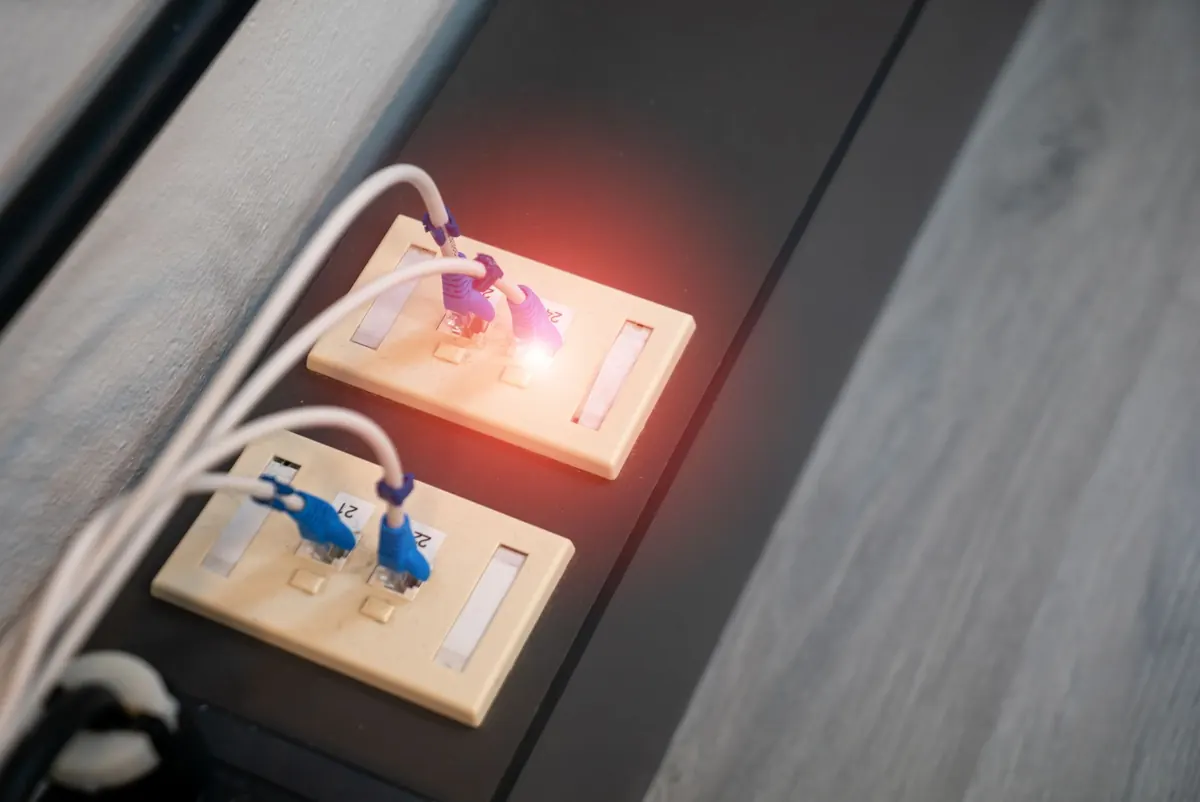
Photo: panumas nikhomkhai / Pexels